THEORY-110 :- INTRODUCTION TO LINUX AND ITS STRUCTURES

Linux Operating System

An operating system can be described as an interface among the computer hardware and the user of any computer. It is a group of software that handles the resources of the computer hardware and facilitates basic services for computer programs.

An operating system is an essential component of system software within a computer system. The primary aim of an operating system is to provide a platform where a user can run any program conveniently or efficiently.

On the other hand, Linux

Linux  is  a  UNIX –like  and  mostly  POSIX  non resistant  computer  operating  system.  Linux  kernel  was first  released  on  5  October  1991  by  Linus  Torvald,  a graduate  Technology  in  Finland.  Since  it  was  written from scratch, it does not contain any behavior code. It is assembled  under  the  model  of  free  and  open  source software development and distributes. Linux is an leading operating system on server and other big systems such as mainframe  computers  and  fastest super computer. It also runs on the coordinated system which devices having OS is  typically  built  into  a  microcode,  it  includes  smart phones,   tablets   running   android,   Linux   derivatives, network   routers,   televisions,   video   games   and   smart watches.  The  source  code  may  be  used,  modified  and distributed with respective license as GNU general public license.  Some  of  the  popular  Linux  distributions  are DEBIAN,  UBUNTU,  LINUX  MINT,  FEDORA,  ARCH LINUX, RED HAT and SUSE Linux organization server

Architecture of Linux system


The Linux operating system's architecture mainly contains some of the components: the Kernel, System Library, Hardware layer, System, and Shell utility.

Kernel:- The kernel is one of the core section of an operating system. It is responsible for each of the major actions of the Linux OS. This operating system contains distinct types of modules and cooperates with underlying hardware directly. The kernel facilitates required abstraction for hiding details of low-level hardware or application programs to the system. There are some of the important kernel types which are mentioned below:

  1. Monolithic Kernel
  2. Micro kernels
  3. Exo kernels
  4. Hybrid kernels

System Libraries:- These libraries can be specified as some special functions. These are applied for implementing the operating system's functionality and don't need code access rights of the modules of kernel.

System Utility Programs:- It is responsible for doing specialized level and individual activities.

Hardware layer:- Linux operating system contains a hardware layer that consists of several peripheral devices like CPU, HDD, and RAM.

Shell:- It is an interface among the kernel and user. It can afford the services of kernel. It can take commands through the user and runs the functions of the kernel. The shell is available in distinct types of OSes. These operating systems are categorized into two different types, which are the graphical shells and command-line shells.

The graphical line shells facilitate the graphical user interface, while the command line shells facilitate the command line interface. Thus, both of these shells implement operations. However, the graphical user interface shells work slower as compared to the command-line interface shells.

There are a few types of these shells which are categorized as follows:

  1. Korn shell
  2. Bourne shell
  3. C shell
  4. POSIX shell

FEATURES OF LINUX

  • Linux is inexpensive , Fast, Stable and Open-Source Software
  • Portable: Linux OS can perform different types of hardware and the kernel of Linux supports the installation of any type of hardware environment.
  • Multiprogramming: Linux OS can be defined as a multiprogramming system. It means more than one application can be executed at the same time.
  • Multi-user: Linux OS can also be defined as a multi-user system. It means more than one user can use the resources of the system such as application programs, memory, or RAM at the same time.
  • Hierarchical file system: Linux OS affords a typical file structure where user files or system files are arranged.
  • Security: Linux OS facilitates user security systems with the help of various features of authentication such as controlled access to specific files, password protection, or data encryption.
  • Shell: Linux operating system facilitates a unique interpreter program. This type of program can be applied for executing commands of the operating system. It can be applied to perform various types of tasks such as call application programs and others.

DRAWBACKS OF LINUX

  • Security ,Lack of Support And Limited Software Selection Choice 
Let's take the Photoshop example which is a famous tool for graphic editing. Photoshop exists for Windows; however, it is not available in Linux. Also, there are some other tools for photo editing but the Photoshop tool is more powerful as compare to others. Another example is MS office which is not present for Linux users.
  • Limited Hardware Support 
Most of the users of Linux face an issue while using Linux. Various companies of hardware prefer to build drivers for Mac or Windows due to they contain several users than Linux. Linux has small drivers for peripheral hardware than windows.
  • Complexity 
Linux isn't a very user-friendly operating system. Hence, it might be confusing for many beginners. Getting begun with Windows is efficient and easy for many beginners; however, understanding Linux working is complex. 
We have to understand the command line interface and finding for newer software is a little bit complex as well. When we face any issue in the OS, the searching solution is very problematic. Also, there are various experts for Mac and Windows as compare to Linux.
  • Games: Several games are developed for Windows but unfortunately not for Linux. Because the platform of Windows is used widely. So, the developers of the games are more interested in windows.

Linux Operating System Applications

Linux is a billion-dollar corporation nowadays. Thousands of governments and companies are using Linux operating system across the world because of lower money, time, licensing fee, and affordability. Linux can be used within several types of electronic devices. These electronic devices are easily available for users worldwide. A few of the famous Linux-based electronic devices are listed below:

  • Yamaha Motive Keyboard
  • Volvo In-Car Navigation System
  • TiVo Digital Video Recorder
  • Sony Reader
  • Sony Bravia Television
  • One Laptop Per child XO2
  • Motorola MotoRokr EM35 phone
  • Lenovo IdeaPad S9
  • HP Mini 1000
  • Google Android Dev Phone 1
  • Garmin Nuvi 860, 880, and 5000
  • Dell Inspiron Mini 9 and 12


THEORY- 109:- INTRODUCTION TO UNIX AND ITS STRUCTURE

UNIX Architecture:

UNIX is multi user, multi-tasking operating system. UNIX has a hierarchical architecture consisting of several layers provides a unique function as well as maintains interaction with its lower layers. Such hierarchal or modular architecture is advantageous for the operating system as failure of one layer does not disrupt the functioning of the whole OS. The layers of the Unix OS are:

  • Kernel
  • Service
  • Shell
  • User application

Kernel: Kernel is the core of the Unix OS and it gets loaded in to memory whenever switch on the computer. The kernel contains three components which are:

Scheduler: it schedules the processing of various jobs

Device Driver: it helps in controlling the I/O devices attached to the computer.

I/O Buffer: it controls the I/O operations in the computer.

Functions Perform By The Kernel:

  • Initiating & executing different program at the same time.
  • Allocating memory to the various user and system processes.
  • Monitoring the files that reside on the disk.
  • Sending & receiving information to and from the network.

Service: In the service layer, request is received from the shell and they are then transformed into command to the kernel.

Services include:

  • Providing access to various input and output devices such as keyboard and monitor.
  • Providing access to storage device, such as disk drives.
  • Controlling different file manipulation activities such as reading from a file & writing to a file.

Shell: The third layer in the UNIX architecture is the shell which acts as an interface between a user and the computer for accepting the request and executing programs.

“Shell is the command line interpreter. User interacts with system through shell.”

UNIX has following most popular shell:


User Application: The last layer in the UNIX architecture is the user application, which is used to perform several tasks and communicating with other user of UNIX.

E.g.- text processing, software development, database management , & electronic communication.

General purpose commands of UNIX OS:

UNIX Architecture:

UNIX is multi user, multi-tasking operating system. UNIX has a hierarchical architecture consisting of several layers provides a unique function as well as maintains interaction with its lower layers. Such hierarchal or modular architecture is advantageous for the operating system as failure of one layer does not disrupt the functioning of the whole OS. The layers of the Unix OS are:

Kernel

Service

Shell

User application


Kernel: Kernel is the core of the Unix OS and it gets loaded in to memory whenever switch on the computer. The kernel contains three components which are:

Scheduler: it schedules the processing of various jobs

Device Driver: it helps in controlling the I/O devices attached to the computer.

I/O Buffer: it controls the I/O operations in the computer.

The kernel enables a user to access the hardware with the help of system calls, where a system calls is a service request that is passes to the kernel for the executing a user program.


Functions Perform By The Kernel:

Initiating & executing different program at the same time.

Allocating memory to the various user and system processes.

Monitoring the files that reside on the disk.

Sending & receiving information to and from the network.

Service: In the service layer, request is received from the shell and they are then transformed into command to the kernel.

Services include:

Providing access to various input and output devices such as keyboard and monitor.

Providing access to storage device, such as disk drives.

Controlling different file manipulation activities such as reading from a file & writing to a file.

Shell: The third layer in the UNIX architecture is the shell which acts as an interface between a user and the computer for accepting the request and executing programs.

“Shell is the command line interpreter. User interacts with system through shell.”


UNIX has following most popular shell:

Shell


Command

Prompt


Bourne shell

$

C shell

%

Korn shell

$

Bash shell

#


User Application: The last layer in the UNIX architecture is the user application, which is used to perform several tasks and communicating with other user of UNIX.

E.g.- text processing, software development, database management , & electronic communication.

General purpose commands of UNIX OS:

cal:    display the calendar

          Syntax:     $cal [month][year]

date:  display the system date and time.

          Syntax:    $date

who:   display the list of users currently logged in

           Syntax:   $ who

ls:       display the list of files/directories.

           Syntax:   $ ls [-option]

Some options are:       -c         (list entries by columns)

                                    -r         (list subdirectory too)

cp:      copy one file to another

          Syntax:   $ cp filename1   filename2

mv:     move one file to another

           Syntax:   $ mv filename1   filename2

cat:      display the content of file.

           Syntax:   $ cat filename

mkdir:  create a new directory/subdirectory.

           Syntax:   $mkdir dirname

rm:       remove a file/directory.

           Syntax:  $rm   filename

rmdir:   remove or delete directories & subdirectories

          Syntax: $rmdir   dirname

who am i:   give the login details.

        Syntax:  $who am i


THEORY- 108 :- WINDOWS BOOTING PROCESS

Booting Process

Booting is the process of switching on a computer. Two types of booting. Six steps of the booting process are BIOS and Setup Program, The Power-On-Self-Test (POST), The Operating System Loads, System Configuration, System Utility Loads, and Users Authentication.

Types of Booting

Booting is the process of switching on the computer and starting the operating system. When a computer is switched on, The boot process loads the operating system into the main memory (RAM) installed inside it. Types of computer booting are Cold Booting And Warm Booting.

  1. Cold Boot: when the user switches on a computer after it has been powered off completely,
  2. Warm Boot: when the user restarts the computer.


Cold Booting In Computer

Cold booting is the process of booting a system that has been turned off. This is usually done by pressing the power button on the computer. Cold Startup does Power on Self-Testing (POST).

This is a series of system checks at the beginning of the boot queue. In other words, it checks that all the requirements are met and that the hardware is working properly before the operating system starts.

When repairing the system, the user will be prompted to turn off the system completely. Then a cold boot is done. It removes all temporary data from the system and removes issues that could affect the operation of the system.

Warm Booting

A warm booting is a process of restarting the system. It can be configured with the operating system. In Windows, the user can start hot booting by selecting the Restart option from the Start menu. On the Mac, the user can begin to warm booting by selecting Reboot from the Apple menu.

A warm boot is usually done by a cold start because users will leave the system in standby mode when it is not running. The warm-up process has no power source for automatic control but does the rest of the boot sequence. It loads all the installed system files before restarting the system.

Cold and Warm Booting are two different types of booting in computers.


Differences Between Cold Booting And Warm Booting

Cold booting is the process of starting a computer from a power outage and operating normally. A warm booting is a process of restarting an already running system without shutting it down completely. Therefore, it explains the differences between cold booting and warm booting.

  1. During a cold start by pressing the power button on the computer, the operating system starts immediately.
  2. A cold boot is also known as a hard start while a warm boot is also called a soft start.
  3. A cold boot resets the system completely rather than a hot boot. This is another difference between a cold boot and a warm boot.
  4. The cold boot has an automatic control function (POST), while the hot boot has no self-regulating function (POST).
  5. A warm boot is more common than a cold boot.

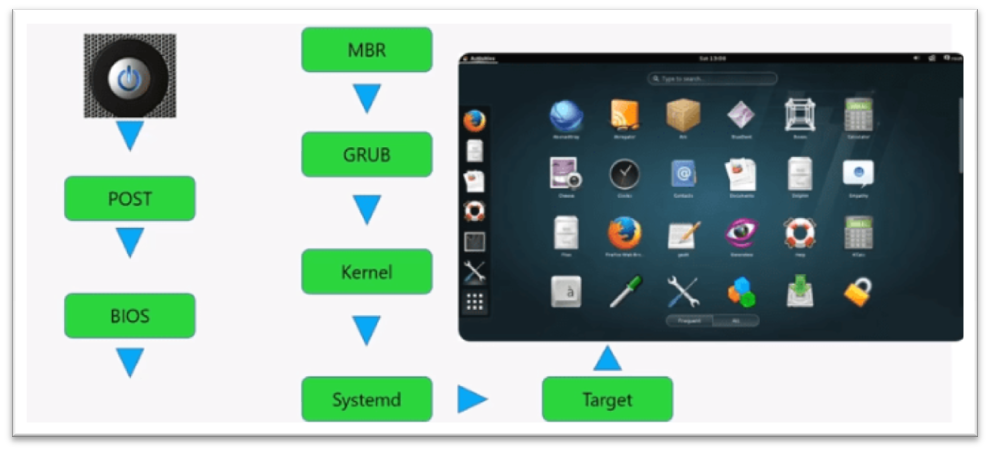
Booting Process With Diagram

 Here we represent the booting process of the computer with a diagram.


Diagram Representation Of Boot process

When the booting process takes place, it copies the kernel and important instructions of an operating system from hard disk to main memory (RAM). The kernel is the most important part of the operating system that manages memory and devices, maintains the computer clock, starts applications.      

It assigns compute resources like devices, programs, data, and information also. The kernel also remains in memory permanently when the computer starts.


Steps In the Booting Process

Booting is the process of switching on the computer and starting the operating system. 6 steps in the booting process are BIOS and Setup Program, The Power-On-Self-Test (POST), The Operating System Loads, System Configuration, System Utility Loads, and Users Authentication.


     1.    BIOS and Setup Program 


     2.    The Power-On-Self-Test (POST)


   3. The Operating System (OS) Loads


    4.     System Configuration


    5.     System Utility Loads 


    6.    Users Authentication


Booting Process Of Computer Step By Step

 Here is the explanation of the booting process steps for more clarity.

 Step 1: BIOS and Setup Program

  •  ROM (read-only memory): it is a permanent and unchanging memory also
  • BIOS (basic input/output system): the part of the system software that includes the instructions that the computer uses to accept input and output
  • Load: to transfer from a storage device to memory. The ROM loads BIOS into the computer’s memory
  • Setup program: a special program containing settings to control hardware.  Furthermore,  the program can only be accessed while the BIOS information is visible. 

Step 2: The Power-On-Self-Test (POST) 

  • POST (Power-On Self-Test): a series of tests conducted on the computer’s main memory, input/output devices, disk drives, and the hard disk.
  • BIOS conduct Power-On-Self-Test to check the input/ output system for operability.
  • The computer will produce a beeping sound if any problem occurs. An error message will also appear on the monitor

Step 3: The Operating System (OS) Loads

 BIOS searches for the operating system.  

  • Setting in CMOS: complementary metal oxide semiconductor determines where to look for the operating system.
  • In this step, the operating system’s kernel is also loaded into the computer’s memory.
  • The operating system takes control of the computer and begins loading system configuration information.

Step 4: System Configuration  

  • Registry: a database to store information about peripherals and software
  • Peripheral: a device connected to a computer
  • Drive: a utility program that makes peripheral devices function properly
  • The operating system’s registry configures the system.
  • In this step, drivers are also loaded into memory.

Step 5: System Utility Loads

  • System utilities are loaded into memory.
  • Volume control
  • Antivirus software
  • PC card unplugging utility 

Step 6: Users Authentication 

  • Authentication or user login occurs
  • Username
  • Password

The above-mentioned steps play an important role in booting a computer. After all this process, the user interface starts, enabling user interaction with the computer and its programs also.


THEORY-107 :- DEVICE MANAGER

What is a Device Manager?

It is a software component of the Microsoft Windows operating system, which is like a command center of all the hardware peripherals connected to the system. The way it works is by giving us a brief and organized overview of all the windows approved hardware devices that are operating in the computer.

This could be electronic components such as keyboard, mouse, monitors, hard disk drives, processors, etc. It is an administrative tool that is a part of the Microsoft Management Console.


Device Manager comes preloaded with the operating system, however, there are other third-party programs available in the market that can be used to achieve the same desired results but it is encouraged not to install these third-party applications due to the inherent security risks they possess.

Microsoft started bundling this tool with the operating system with the introduction of Windows 95. Initially, it was just designed to display and interact with pre-existing hardware. Over the next few revisions, the hot-plugging capability was added, which enables the kernel to notify the device manager of any new hardware-related changes that are taking place. Such as plugging in a USB thumb drive, insertion of a new network cable, etc.

Device Manager helps us to:

  • Modify hardware configuration.
  • Change and retrieve hardware drivers.
  • Detecting conflicts between the hardware devices that are plugged into the system.
  • Identify problematic drivers and disable them.
  • Display the hardware information such as the device manufacturer, model number, classification device, and more.

Why Do We Need a Device Manager?

There are a lot of reasons why we might need a device manager, but the most important reason we need the device manager is for software drivers.

A software driver is as Microsoft defines software that allows your computer to communicate with hardware or devices. But why do we need that, so let’s say you’ve got a sound card you should be able to just plug it in with no drivers and your music player should generate a digital signal that the sound card should make.

That’s basically how it would have worked if there was only one sound card in existence. But the real problem is that there are literally thousands of sound devices and all of them will work completely differently from each other.

So a software driver acts as an abstraction layer or translator in a way, where the software programs only have to interact with your hardware in one standardized language and the driver handles the rest.

How to Access the Device Manager?

There are various ways by which we can access the device manager, in most of the versions of Microsoft windows we can open device manager from the command prompt, the control panel, from the run tool, right-clicking the start menu, etc.

Method 1: From the start menu

Go to the lower left side of the desktop, Right-click on the start menu, a huge list of various administrative shortcuts will appear, locate and click on the “device manager”.


Method 2: Quick Access Menu

On the desktop, keep holding the Windows key while you press ‘X’, then select the device manager from the pre-populated administrative tools.


Method 3: From the Control Panel

Open the Control Panel, click on Hardware and Sound, under the Devices and Printers, select Device Manager.


Method 4: Via Run   

Press Windows key + R to open the run dialog box, then in the dialog box besides Open type “devmgmt.msc” and tap OK.


Method 5: Using the Windows search box  

Besides the windows icon in the desktop, there is an icon with a magnifying glass, press that to expand the search box, in the search box type “Device Manager” and hit Enter. You will start to see the results populate, click on the first result that is displayed in the Best Match Section.


Method 6: From the Command Prompt  


Open the Run dialog using Windows+R hotkeys, enter ‘cmd’ and tap OK. After that, you should be able to see the command prompt window. Now, in the Command Prompt, Enter ‘start devmgmt.msc’ (without quotes) and hit Enter.


Method 7: Open Device Manager through Windows PowerShell 

Powershell is a more advanced form of command prompt which is used to run any external programs as well as automate an array of system administration tasks not available to the command prompt.

To open the device manager in Windows Powershell, Access the start menu, scroll down in the all applications list till you reach Windows PowerShell prompt, Once opened type ‘devmgmt.msc‘ and press Enter.

These are some of the ways we can access the device manager, there are plenty of other unique ways we can access the device manager depending on the version of windows operating system you are running, but for the sake of convenience, we will limit ourselves to the above-mentioned methods.

Device Manager Functions 

  1. Device Detection and Addition 
  2. Device Deletion 
  3. Device Allocation and 
  4. Registration 
  5. Detaching and Deregistration

Disabled device

A disabled device has either been manually disabled by a user or by some way of error. In Windows 95 through XP, this is denoted by a red X. In Windows Vista and Windows 7, this was replaced by a grey downward pointing arrow in the lower right‐hand corner of the device's icon.

Hardware not working properly

There are many reasons why hardware may not work properly. If Windows recognizes a problem with a device, it is denoted by a black exclamation point (!) on a yellow triangle in the lower right‐hand corner of the device's icon.

Hardware not recognized

Hardware may not be recognized if it is not installed properly or not compatible with your system. This is denoted by a yellow question mark in place of the device's icon.

Device manually selected

 A blue "i" on a white field in the lower right‐hand corner of a Device's icon indicates that the Use automatic settings feature is not selected for the device and that the resource was manually selected. Note that this does not indicate a problem or disabled state.

Error codes

Device Manager error codes are numerical codes, each accompanied by an error message, which help users determine what kind of issue Windows is having with a piece of hardware.